Access to the admin console is governed by users and roles. Each user is assigned one or more roles, and roles determine which features and actions are available.
Managing users
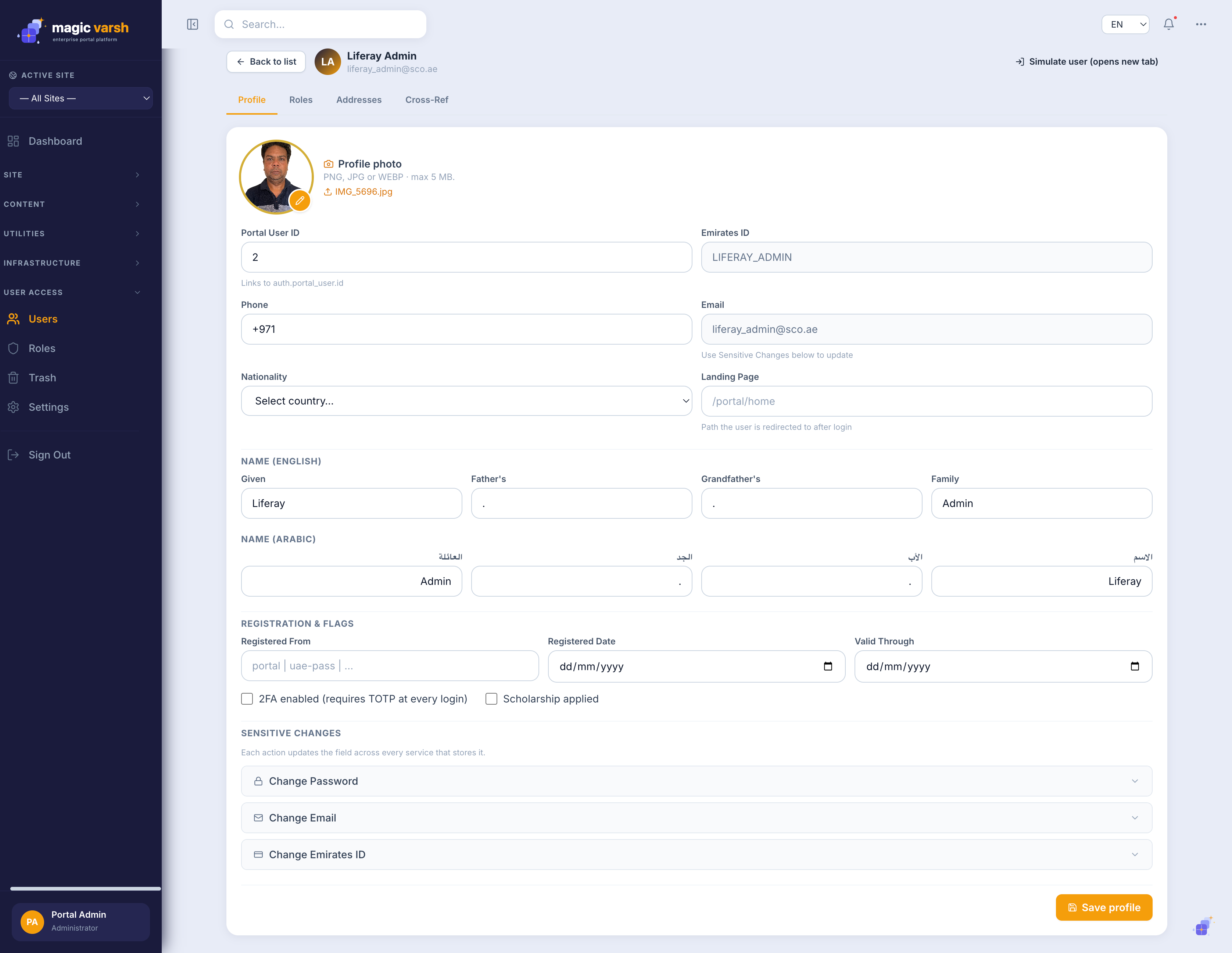
The Users screen lists everyone with access. From here you add, edit and deactivate users.
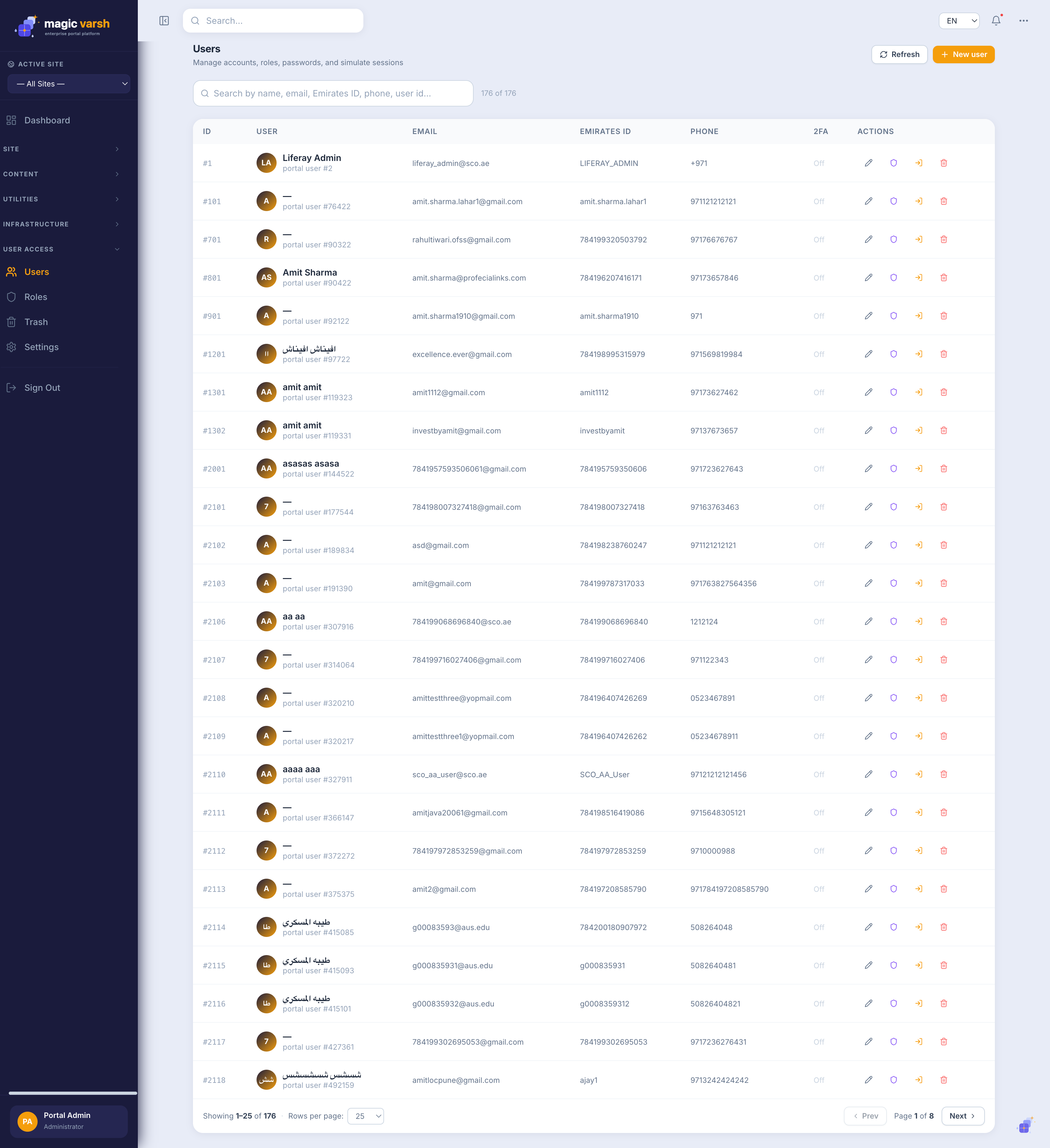
- Open Users from the sidebar.
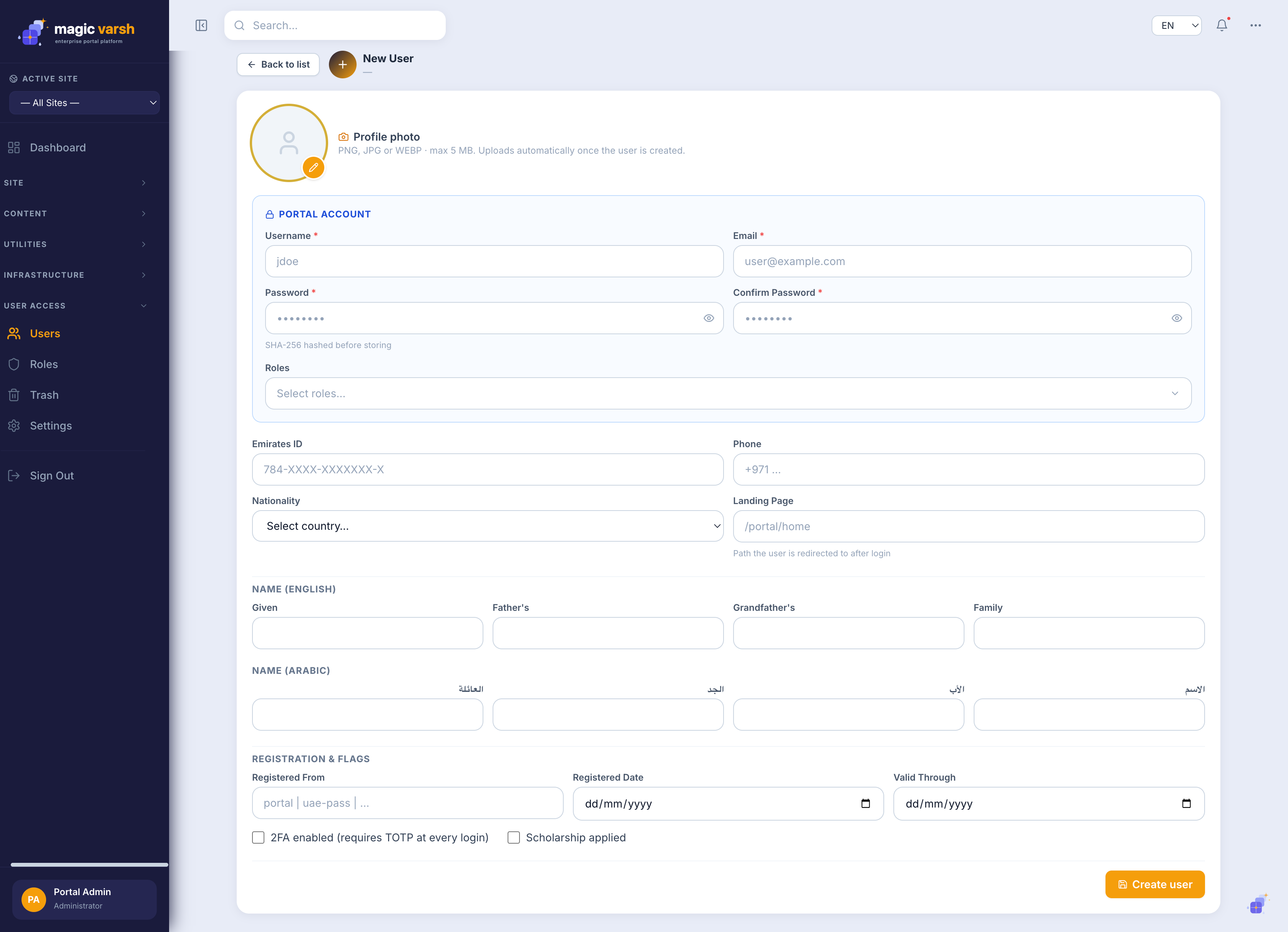
- Select New User and enter their details.
- Assign one or more roles.
- Save — the user can now sign in with the access their roles grant.
Roles and permissions
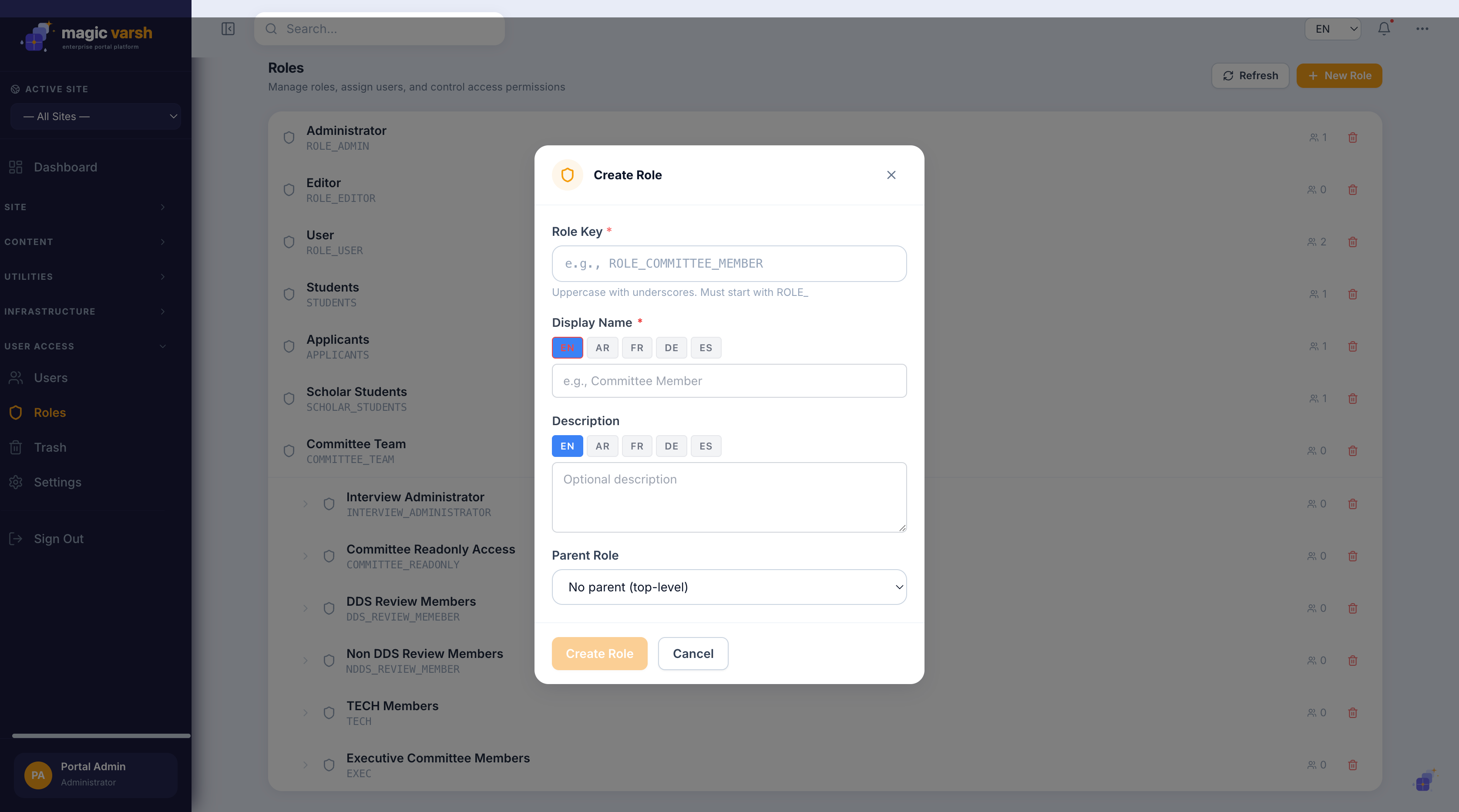
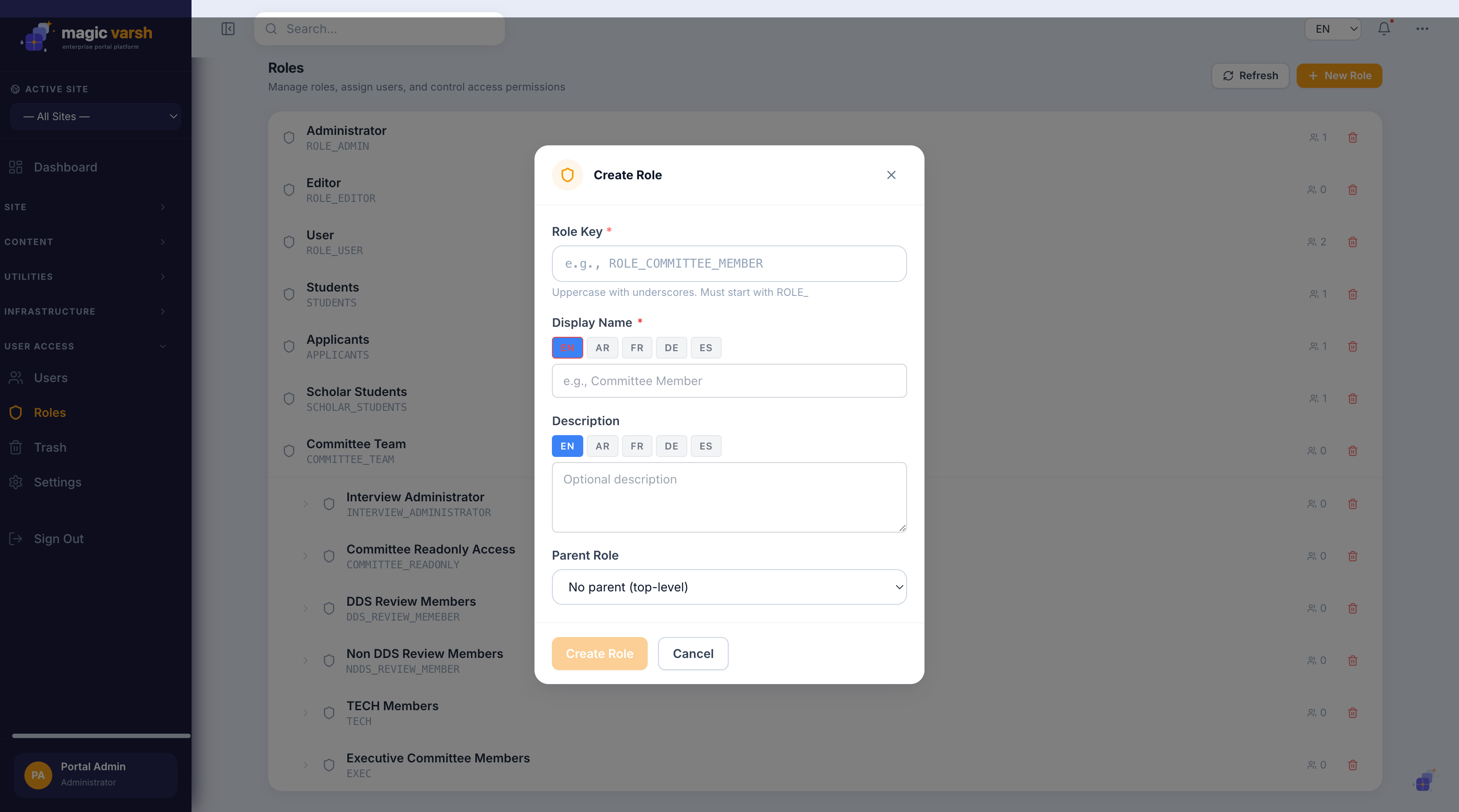
The Roles screen defines what each role can see and do. Grant only the permissions a role needs so people have the right level of access.
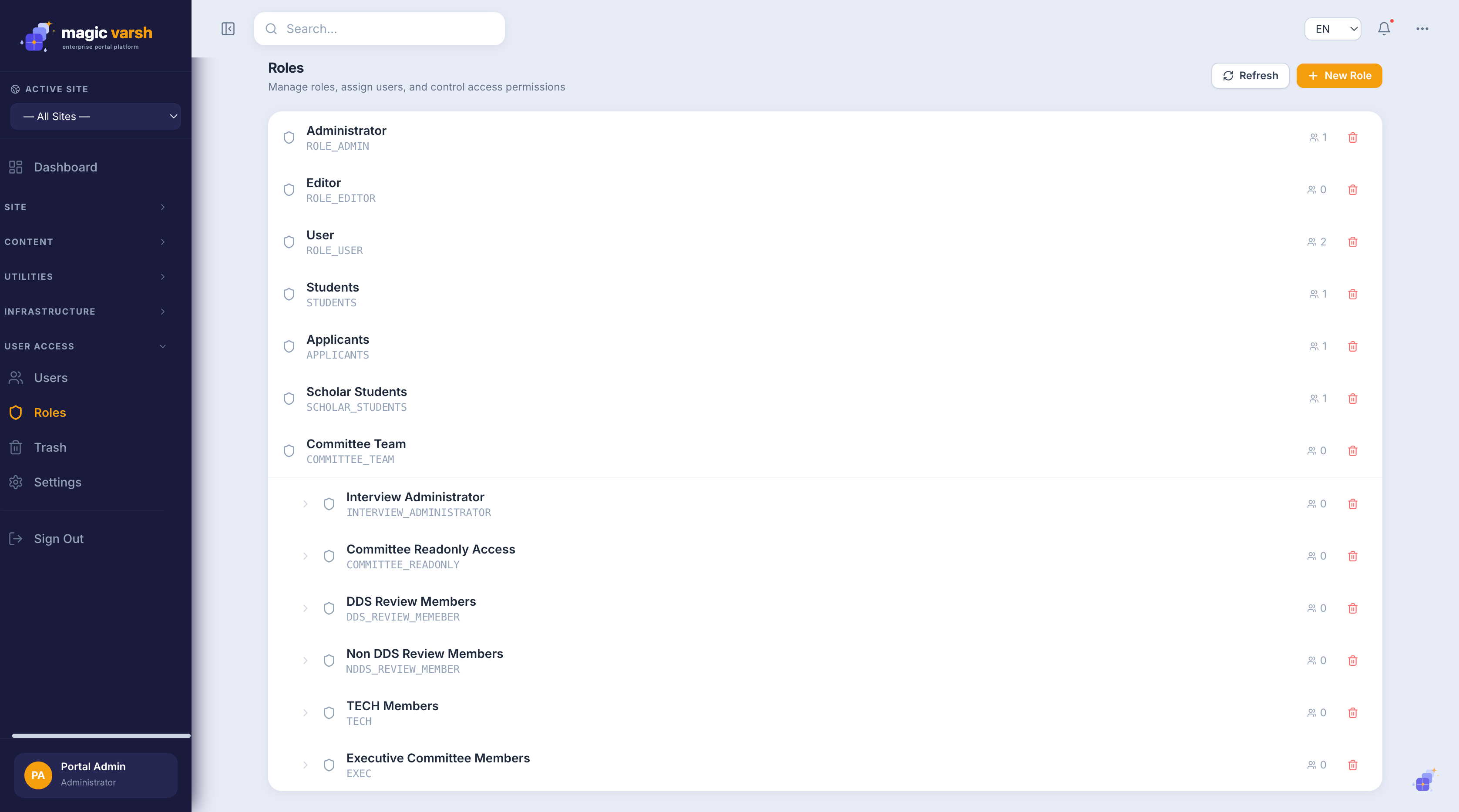
- Open Roles and select New Role.
- Name the role and choose the permissions it grants.
- Save, then assign the role to users.
!
Be careful when granting administrative roles — they can change settings and manage other users.